
Cómo configurar una cuenta de correo en Outlook, Gmail e iOS Mail
Datos de ejemplo
- Correo / Usuario: info@hellopix.es
- Servidor entrante: hellopix.es
- Servidor saliente (SMTP): hellopix.es
- SMTP requiere autenticación: ✅ Sí
- Protocolos entrantes soportados: POP3 / IMAP
Estos datos son de ejemplo, tendrás que añadir tu dominio, usuario y contraseña proporcionados por soporte
Puertos
- IMAP: 993 (SSL)
- POP3: 995 (SSL)
- SMTP: 465 (SSL)
POP3: descarga los correos al dispositivo y normalmente los elimina del servidor.
👉 Pensado para usar el email en un solo equipo.
IMAP: mantiene los correos en el servidor y los sincroniza entre todos tus dispositivos.
👉 Ves lo mismo en móvil, ordenador y webmail.
Resumen:
- POP3 = descargas y gestionas localmente
- IMAP = todo sincronizado en la nube (el recomendado)
🟦 Outlook (Windows – Microsoft 365 / 2019 / 2016)
Configuración automática
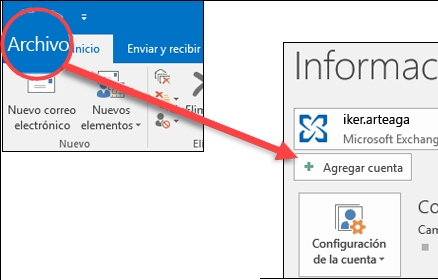
1️⃣ Ir a Archivo
2️⃣ Pulsar en Agregar cuenta
⚠️ No usar “Abrir archivo de datos”
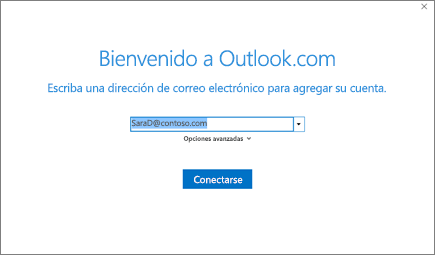
3️⃣ Introducir:
Correo:
info@hellopix.es
4️⃣ Pulsar en Conectar
5️⃣ Introducir contraseña
6️⃣ Finalizar
Si no se configura automáticamente → usar configuración manual.
🟦 Outlook (Configuración manual correcta – IMAP)
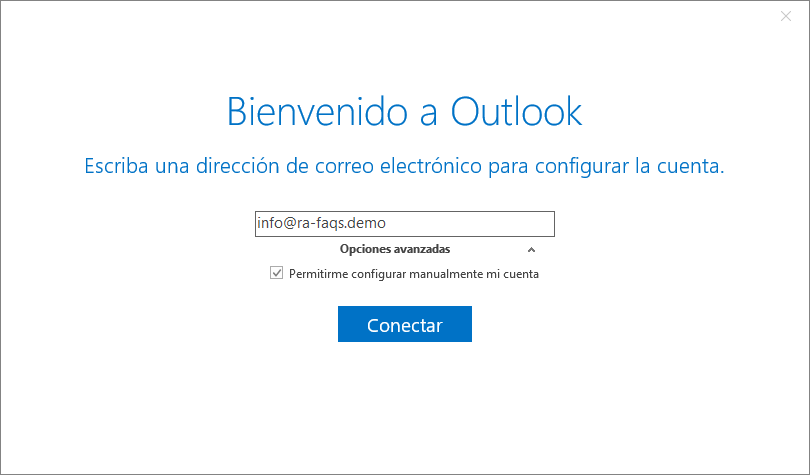
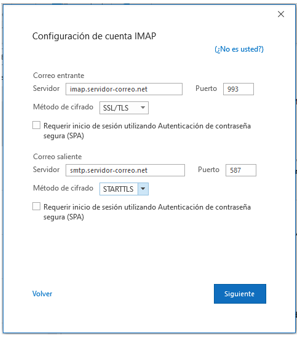
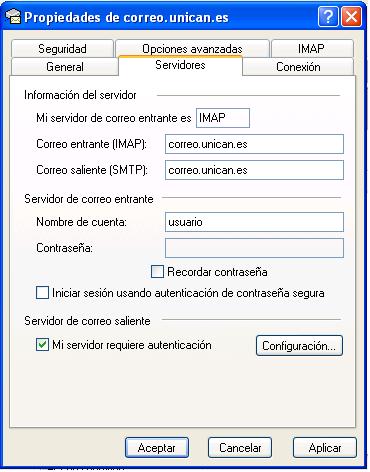
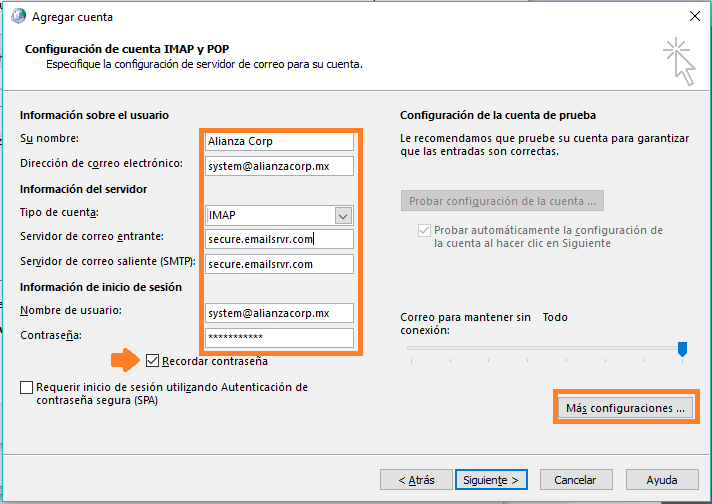
1️⃣ Archivo → Agregar cuenta
2️⃣ Escribir: info@hellopix.es
3️⃣ Pulsar en Opciones avanzadas
4️⃣ Marcar: Permitir configurar mi cuenta manualmente
5️⃣ Pulsar en Conectar
6️⃣ Elegir IMAP
Introducir:
Servidor entrante:
- Servidor: hellopix.es
- Puerto: 993
- Cifrado: SSL/TLS
Servidor saliente (SMTP):
- Servidor: hellopix.es
- Puerto: 465
- Cifrado: SSL/TLS
Usuario:
info@hellopix.es
Contraseña:
(la facilitada por soporte)
Finalizar
🟦 Nuevo Outlook (Interfaz moderna)
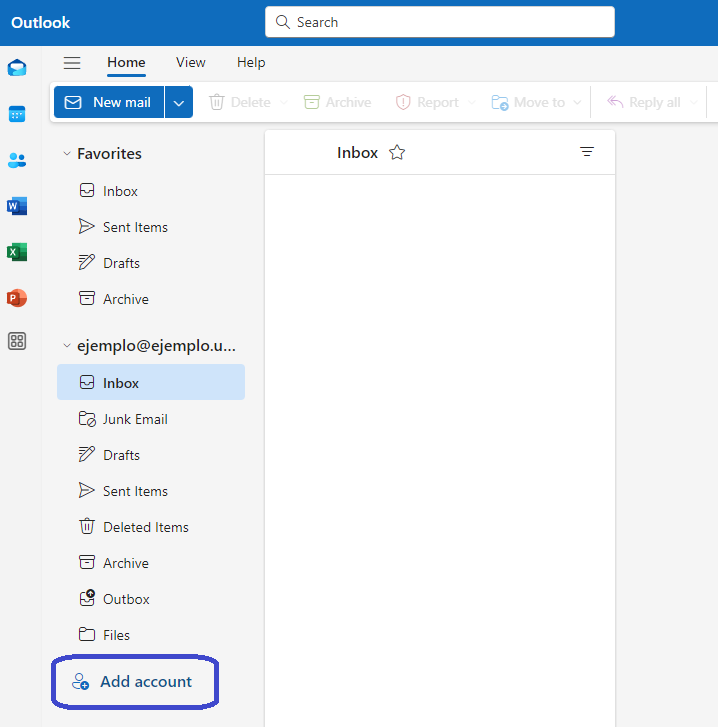
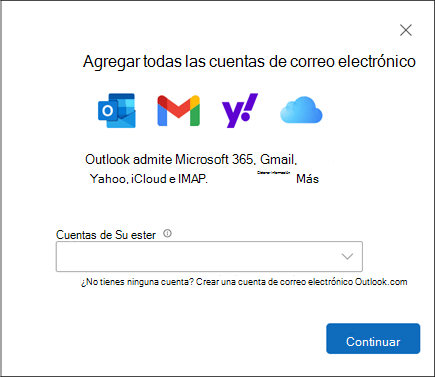
1️⃣ ⚙️ Configuración
2️⃣ Cuentas
3️⃣ Agregar cuenta
4️⃣ Introducir: info@hellopix.es
Si no detecta configuración automática:
Seleccionar IMAP manual
Introducir:
Entrante:
- Servidor: hellopix.es
- Puerto: 993
- SSL activado
Saliente:
- Servidor: hellopix.es
- Puerto: 465
- SSL activado
- Autenticación activada
Usuario:
Guardar
🍎 Outlook para Mac
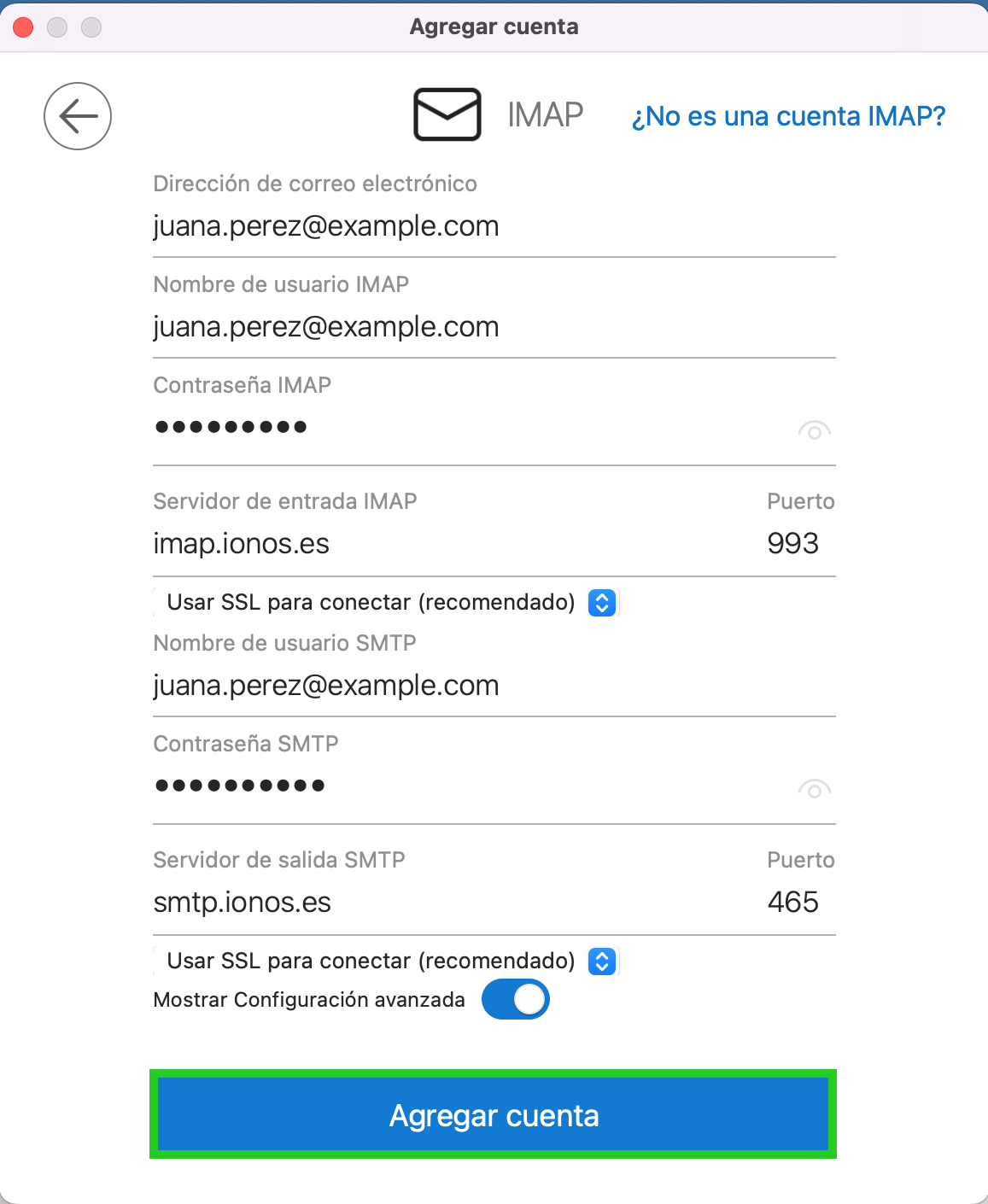
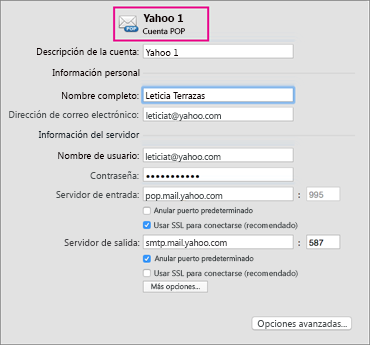
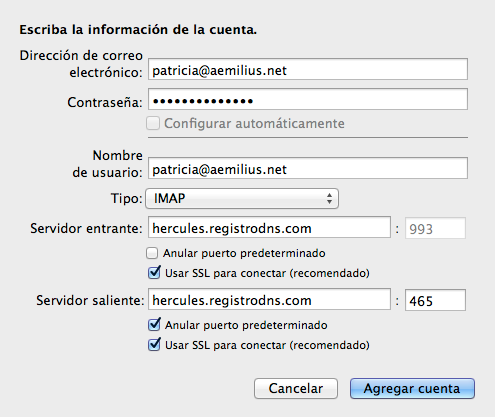
1️⃣ Outlook → Configuración
2️⃣ Cuentas
3️⃣ Añadir cuenta
4️⃣ Introducir: info@hellopix.es
Si es necesario → Configurar manualmente
Entrante:
- Servidor: hellopix.es
- Puerto: 993
- SSL activado
Saliente:
- Servidor: hellopix.es
- Puerto: 465
- SSL activado
- Autenticación activada
Usuario:
Guardar
🟥 Gmail (Web)

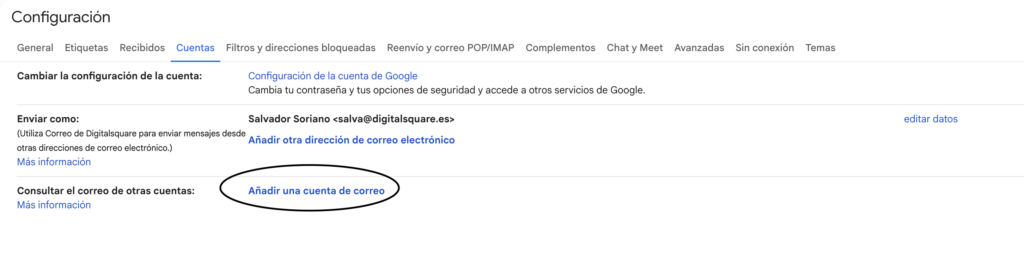
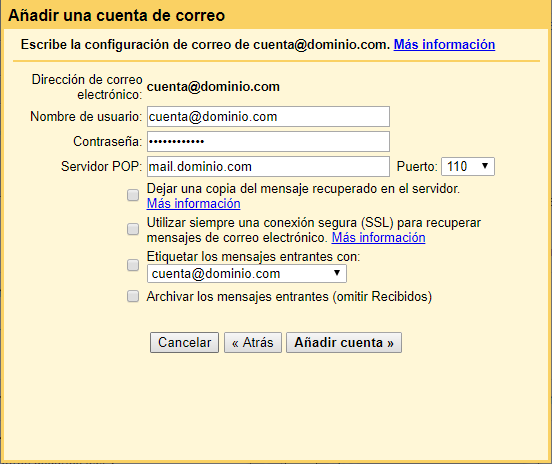
Marcar Utilizar siempre una conexión segura
1️⃣ ⚙️ Configuración
2️⃣ Ver toda la configuración
3️⃣ Cuentas e importación
4️⃣ Añadir una cuenta de correo
Correo:
info@hellopix.es
Seleccionar importar mediante POP
Introducir:
- Usuario: info@hellopix.es
- Contraseña: (facilitada)
- Servidor POP: hellopix.es
- Puerto: 995
- Conexión segura SSL activada
Finalizar
📱 iPhone / iPad (iOS Mail)
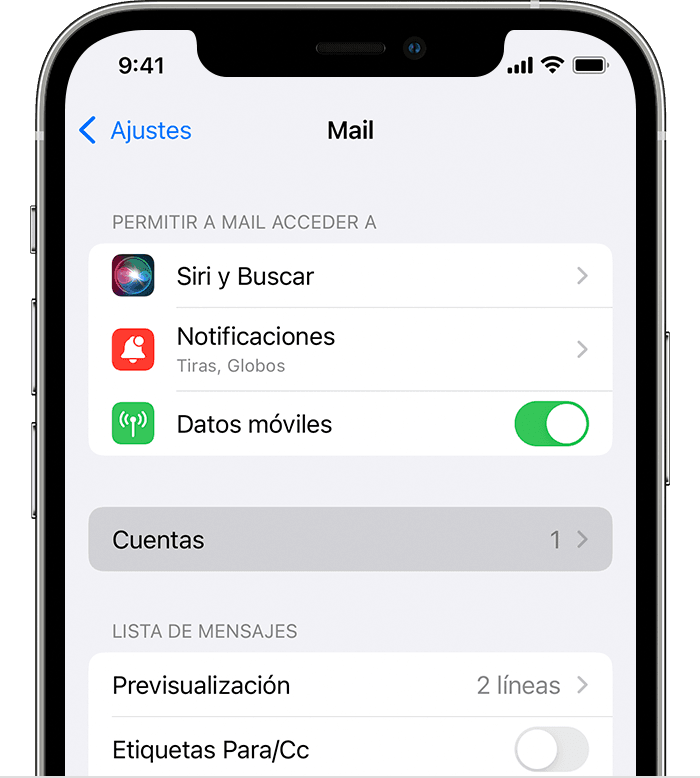
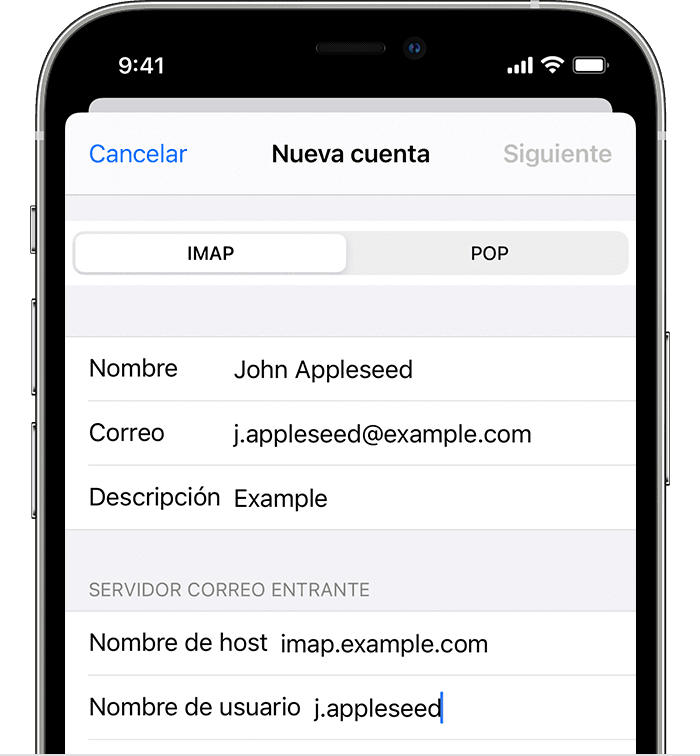
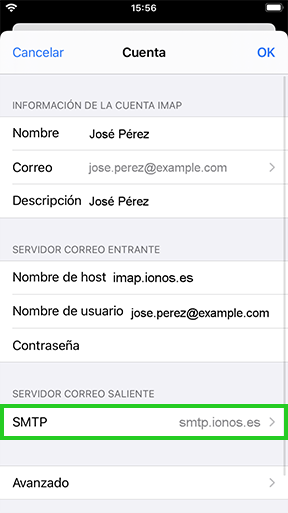
1️⃣ Ajustes
2️⃣ Mail
3️⃣ Cuentas
4️⃣ Añadir cuenta
5️⃣ Otra
6️⃣ Añadir cuenta de correo
Introducir:
- Nombre: el que el usuario quiera mostrar
- Email: info@hellopix.es
- Contraseña: (facilitada)
- Descripción: hellopix
Si no se configura automáticamente → IMAP
Entrante:
- Host: hellopix.es
- Usuario: info@hellopix.es
- Puerto: 993
- SSL activado
Saliente:
- Host: hellopix.es
- Usuario: info@hellopix.es
- Puerto: 465
- SSL activado
- Autenticación activada
Guardar